

 EDR Home
Testimonials
EDR Features
Download
EDR
Go to EDR
Store
FAQ
Instructor's
Page
Contact Us
How to register your EDR...
The final step of a purchase is to enter the Registration Key into the EDR program on your computer.
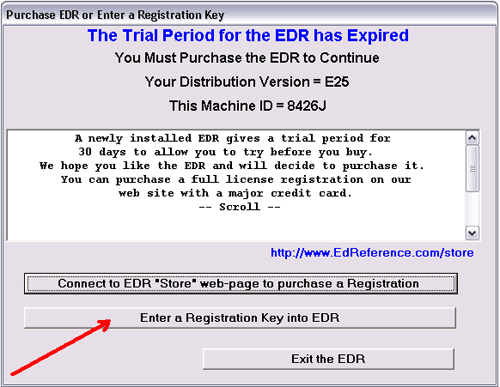
To do this, first run the EDR. It should come up with the Registration Prompt panel shown in Figure 1. (This screen comes up automatically when you start an un-registered EDR.)
Figure 1: EDR Registration Prompt Panel.
Click button labeled “Enter a Registration Key into EDR” to bring up the Key entry panel.Click the “Enter a Registration Key into EDR” button to bring up the actual key entry panel shown in Figure 2.
Figure 2: Registration Key Entry Panel
Enter your Registration Key in the white space.
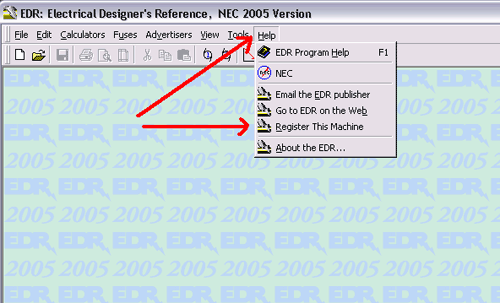
Enter your registration key into the white space provided. To avoid typos, it is often easier to cut and paste the key from the confirmation email into this space. If you are typing the key manually, note that the key uses the numerals zero (“0”) and one (“1”) and avoids the confusing letters el (“L”) or oh (“o”).You can also bring up the EDR Registration Prompt Panel: Figure 1 at any time, by selecting Help-Register from the main menu shown in Figure 3.
Figure 3: You can bring up the Register Prompt Panel: Figure 1 at any time from the main-menu selection of Help-Register

 Go Back
Home |
Download |
Store
The Electrical Designers’ Reference is brought to you by:
C+E Electronic Publishing